
What's new?
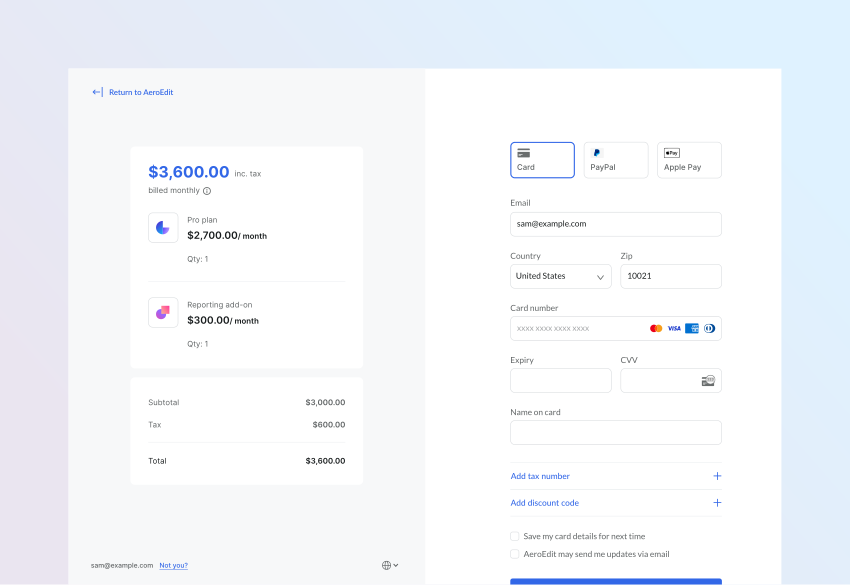
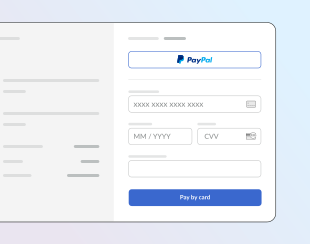
We've released one-page checkout, letting customers enter all their details and complete purchase on a single page. It's available for inline and overlay checkout by passing a new variant parameter to Paddle.js.
How it works
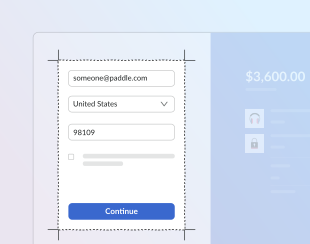
Previously, Paddle Checkout presented customers with two pages to securely capture purchase information. The first page captured customer email address and address information, followed by a second page where customers entered their payment details.
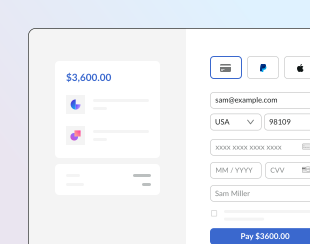
With this update, we've added a new checkout variant that you can use to combine these steps onto one page. This means customers enter their email address, address information, choose a payment method, and complete purchase all on the one page.
You can choose which checkout experience that you present to customers by passing variant with the value one-page or multi-page as a checkout setting. If omitted, Paddle Checkout defaults to multi-page, so existing integrations aren't impacted.
Customer journey
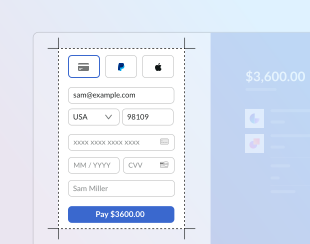
One-page checkout
Enter address, location, and payment details
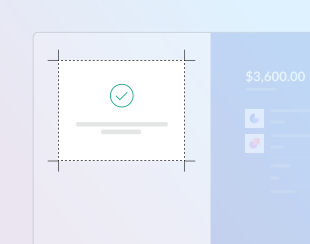
Checkout complete
Multi-page checkout
Enter email address and address information
Enter payment details
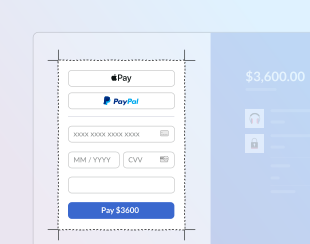
Checkout complete
For an improved customer experience, one-page overlay checkout covers the visible area of the page rather than appearing as a modal.
One-page checkout
Enter address, location, and payment details
Checkout complete
'%3e%3cpath%20d='m0%200h310v244h-310z'%20fill='url(%23a)'/%3e%3crect%20fill='%23fff'%20height='235.35'%20rx='7.675'%20width='314.35'%20x='28.325'%20y='28.325'/%3e%3crect%20height='235.35'%20rx='7.675'%20stroke='%23202323'%20stroke-width='.65'%20width='314.35'%20x='28.325'%20y='28.325'/%3e%3ccircle%20cx='183.743'%20cy='116.742'%20fill='%230469e6'%20r='12.3473'%20transform='matrix(0%201%20-1%200%20300.485%20-67.001)'/%3e%3cellipse%20cx='183.743'%20cy='116.742'%20fill='%233267e7'%20rx='20.1456'%20ry='20.1456'%20transform='matrix(0%201%20-1%200%20300.485%20-67.001)'/%3e%3cpath%20d='m174.645%20117.103%205.687%205.48c.023.023.06.023.083%200l12.133-11.69'%20stroke='%23fff'%20stroke-linecap='round'%20stroke-width='3'/%3e%3cg%20fill='%23f4f4f4'%3e%3cpath%20d='m109%20155.701c0-1.797%201.456-3.253%203.253-3.253h143.114c1.796%200%203.252%201.456%203.252%203.253%200%201.796-1.456%203.252-3.252%203.252h-143.114c-1.797%200-3.253-1.456-3.253-3.252z'/%3e%3cpath%20d='m154.537%20170.701c0-1.797%201.456-3.253%203.253-3.253h52.041c1.796%200%203.253%201.456%203.253%203.253%200%201.796-1.457%203.252-3.253%203.252h-52.041c-1.797%200-3.253-1.456-3.253-3.252z'/%3e%3c/g%3e%3c/g%3e%3c/svg%3e)
Multi-page checkout
Enter email address and address information
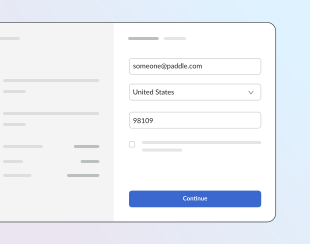
Enter payment details
Checkout complete
'/%3e%3c/mask%3e%3cpath%20d='m0%20.216553h310v243.784h-310z'%20fill='url(%23b)'/%3e%3cg%20mask='url(%23d)'%3e%3cpath%20d='m-37.675%2030.8302c0-4.7081%203.8167-8.5247%208.5248-8.5247h296.3002c4.708%200%208.525%203.8166%208.525%208.5247v182.1228c0%204.708-3.817%208.525-8.525%208.525h-296.3002c-4.7081%200-8.5248-3.817-8.5248-8.525z'%20fill='%23fff'%20stroke='%23202323'%20stroke-width='.65'/%3e%3c/g%3e%3cpath%20clip-rule='evenodd'%20d='m140.617%2099.395c0%2012.156-9.864%2022.011-22.031%2022.011s-22.0309-9.855-22.0309-22.011c0-12.1564%209.8639-22.0112%2022.0309-22.0112s22.031%209.8548%2022.031%2022.0112zm1.555%200c0%2013.015-10.56%2023.565-23.586%2023.565s-23.586-10.55-23.586-23.565c0-13.0145%2010.56-23.5649%2023.586-23.5649s23.586%2010.5504%2023.586%2023.5649zm-12.409-5.9246c.303-.3034.303-.7952%200-1.0986-.304-.3034-.796-.3034-1.1%200l-13.965%2013.9522-6.707-6.7015c-.304-.3034-.796-.3034-1.1%200-.303.3034-.303.7955%200%201.0985l7.258%207.251c.303.303.796.303%201.099%200z'%20fill='%2300977a'%20fill-rule='evenodd'/%3e%3cg%20fill='%23bbbfbf'%3e%3crect%20height='3.99645'%20opacity='.4'%20rx='1.87143'%20width='150'%20x='44'%20y='142.873'/%3e%3crect%20height='3.99645'%20opacity='.4'%20rx='1.87143'%20width='86'%20x='76'%20y='154.863'/%3e%3c/g%3e%3c/svg%3e)
Examples
Overlay checkout
This example opens a one-page overlay checkout. It passes the settings object to the Paddle.Checkout.open() method, meaning settings only apply to the opened checkout.
var itemsList = [  {    priceId: 'pri_01gm81eqze2vmmvhpjg13bfeqg',    quantity: 1  },  {    priceId: 'pri_01gm82kny0ad1tk358gxmsq87m',    quantity: 1  }];
Paddle.Checkout.open({  settings: {    displayMode: "overlay",    variant: "one-page"  },  items: itemsList,});
Inline checkout
This example opens a one-page inline checkout. It passes the settings object to the Paddle.Initialize() method, meaning settings apply to all checkouts opened on the page.
Paddle.Initialize({ token: 'live_7d279f61a3499fed520f7cd8c08', // replace with a client-side token checkout: { settings: { displayMode: "inline", variant: "one-page", theme: "light", locale: "en", frameTarget: "checkout-container", frameInitialHeight: "450", frameStyle: "width: 100%; min-width: 312px; background-color: transparent; border: none;" } }});Next steps
This change is live in Paddle.js now. You don't need to do anything to get the latest version of Paddle.js — we serve the latest version automatically. If you're using the Paddle.js wrapper, update to the latest version in your project using your package manager.
You can choose which checkout experience to present to customers. Pass variant with the value one-page to Paddle.Checkout.open() or to Paddle.Initialize() as a checkout setting to present customers with the one-page checkout experience.
If omitted, variant defaults to multi-page and Paddle presents the multi-page checkout experience.
You shouldn't need to make major changes to your implementation to start using the one-page checkout experience, but we recommend that you:
- Test your checkout journey
If you've built an inline checkout flow that presents customers with breadcrumbs or other UI elements to illustrate where they are in the process, you can remove these now all checkout fields are on one page. - Test checkout events
While Paddle.js events haven't changed, the checkout flow has changed. Check that Paddle.js events emitted still work for you. For example,checkout.customer.createdmay have been used to indicate that a customer had moved to the second page of the checkout. There's now only one page, so it's now emitted once a customer has entered their email address and location information. - Review and update your checkout frame initial height — inline checkout only
When opening an inline checkout, you can passframeInitialHeightto set the height of the element where Paddle Checkout is loaded. You may need to increase this to accommodate the one-page checkout form.
We've updated our docs with information about the new one-page checkout, including Paddle.js reference guides, our inline checkout overview guide, and our overlay checkout overview guide.
Summary of changes
| Entity | Field | Change | Type |
|---|---|---|---|
| Paddle.Checkout.open() | variant | + Added | Paddle.js param |
| Display checkout as one-page or multi-page. | |||