
What's new?
We added the option to verify your domains for Apple Pay. This lets you launch the Apple Pay modal where customers pick a card and confirm directly from your checkout.
How it works
Apple Pay is a digital wallet that's integrated with iPhones, iPads, Macs, and other Apple devices. Customers authenticate using Face ID, Touch ID, or using their Apple Watch which makes it a simple and secure experience.
You can turn on Apple Pay for Paddle Checkout in a couple of clicks — no engineering effort required, and no need to sign up for an Apple Developer account.
Apple requires domain ownership verification for all websites that offer Apple Pay. This means that Apple servers check that you own a website before letting you launch the Apple Pay modal where customers pick a card and confirm.
To display Apple Pay on your website, Paddle opens an unobtrusive popup from a Paddle.com domain that launches the Apple Pay modal. The popup automatically closes when customers pick a card and confirm.
With this update, we added the option to verify your domains for Apple Pay. This lets you launch the Apple Pay modal directly from your checkout — no need for a popup.
Unverified domains
If you use Apple Pay on an unverified domain, Paddle opens an unobtrusive popup from a Paddle.com domain that launches the Apple Pay modal.
Customer chooses Apple Pay
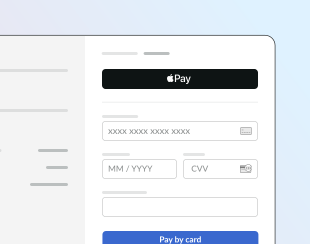
Paddle Checkout launches an unobtrusive popup to open Apple Pay

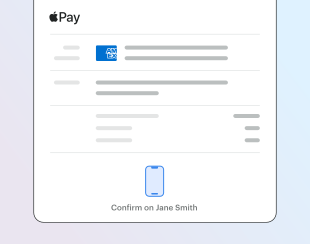
Customer selects a card and confirms using the Apple Pay modal
Verified domains
If you use Apple Pay on a verified domain, the Apple Pay modal launches directly from your checkout. Customers can pick a card and confirm, with no Paddle.com popup.
Customer chooses Apple Pay
Customer selects a card and confirms using the Apple Pay modal
Next steps
You don't need to verify your domain to offer Apple Pay, but we recommend it for a more seamless experience.
Go to Paddle > Checkout > Website approval > Apple Pay verification to start verifying your domains for Apple Pay. For information about how verification works, see: Apple Pay
There are no changes to endpoints or fields in the API as a result of this change.